 Siftwren Product Filter
Adding it
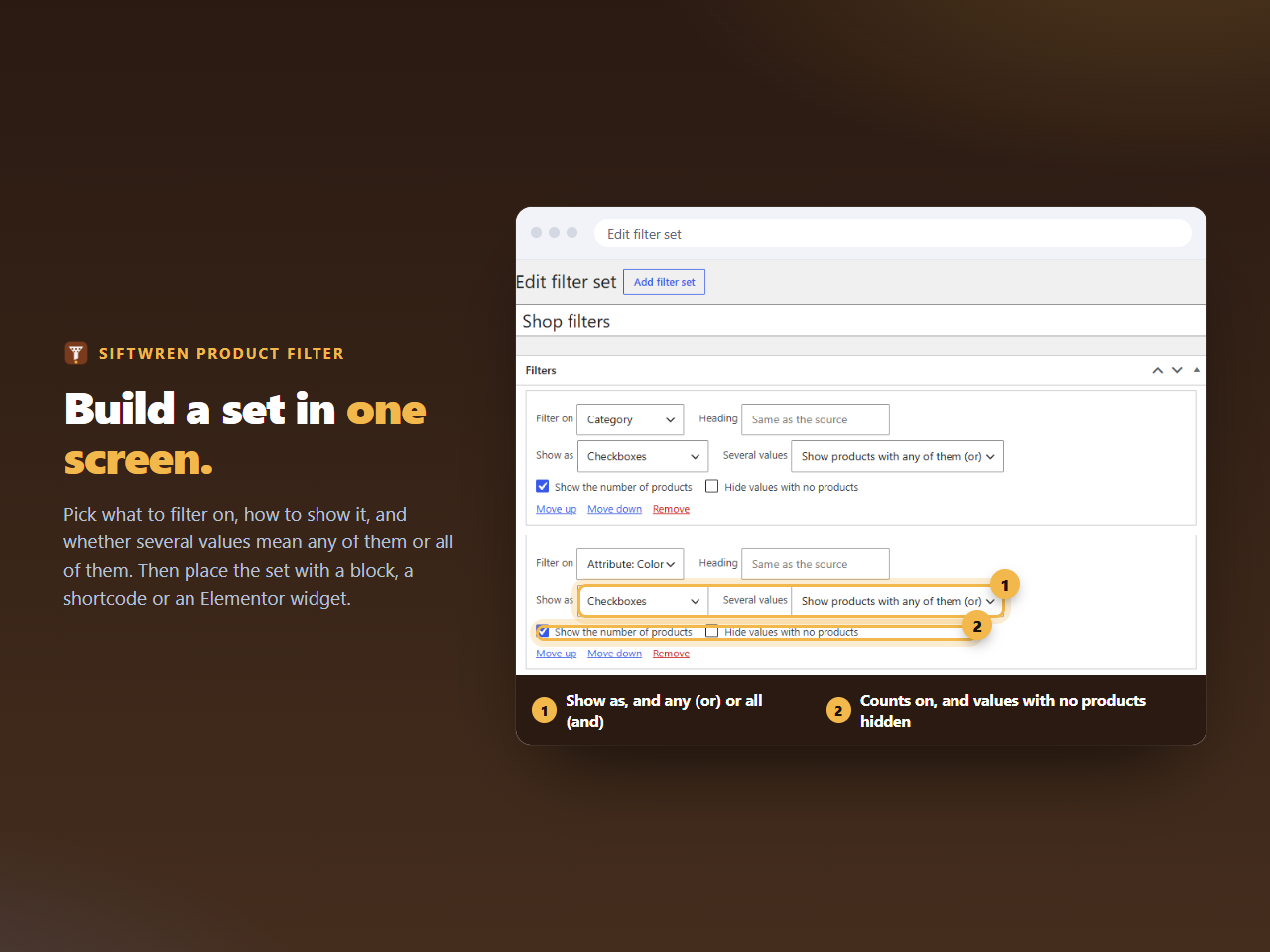
Edit the template for the shop, or a widget area, press + and search for siftwren. The block sits in its own category in the inserter. Choose a filter set in the block’s sidebar. The block has one setting, which set to draw, and everything else about the filters lives in the set.
What the editor shows
A still preview that says which set the block is drawing. The filters themselves appear on the published page, where they can count against the real shop. We chose that because a preview cannot count against a shop that is not being asked, and a made-up count in the editor would be the one thing this plugin should not show.
Where it draws
On the shop page and on product category, tag and brand pages. Put the block in the template or template part those pages use, in a column next to the product list. On a page that is not a product archive, visitors see nothing, and a shop manager sees one line saying why.
Several blocks, one set
The block can be used more than once, even for the same set, and the set is a normal filter set that can also be drawn by the shortcode [siftwren_filter id="…"] or the Elementor widget. All three give the same markup, which we compared on a real WordPress with Elementor active.
For the block theme specifics, such as WooCommerce’s product collection block and what happens on the back button, see the block themes guide.